
We all love a smooth, uninterrupted entertainment experience. Unfortunately, interruptions can ruin the fun. Kodi, a popular media player used by millions worldwide, offers on-demand, high-quality content—often for free. It connects countless streamers to a wide range of online sources. However, buffering issues on Kodi are a common problem, especially as more streams are added without limits. The good news? There are simple solutions to fix or minimize buffering issues on Kodi 21 and Kodi 20. Let’s dive in!
Kodi has become a favorite tool for cord-cutters around the world. Developed by XBMC, this app transforms your device into a full-featured media center. You can play your locally saved files, cast them, or use add-ons and builds to access a treasure trove of free content online. Even better, Kodi works on a variety of platforms, including Fire TV Stick, FireStick 4K, FireStick 4K Max, Android, iOS, Windows, Mac, and Linux.
While Kodi is fantastic, it’s not perfect. Some users find it a bit tricky to set up compared to alternatives like Plex. But once you get the hang of it, you might not want to switch to any other media player.
The biggest issue with Kodi, though, is buffering. Few things are as frustrating as constant interruptions when you’re in the middle of a great movie or TV show. Thankfully, with a few tweaks, you can reduce or even eliminate buffering and enjoy seamless streaming.
How to Fix Kodi Buffering Issues
Enable Unknown Sources on Kodi
Before we start fixing Kodi buffering issues, there’s one important step we need to handle first.
Kodi is built with safety in mind, using strong security measures to protect your entertainment experience. By default, Kodi blocks installations from unknown third-party sources to prevent harmful add-ons from being installed. However, not all third-party add-ons are risky—especially the ones we’ll cover in this guide.
To install these helpful add-ons, you’ll need to temporarily enable the Unknown Sources option. Here’s how to do it:
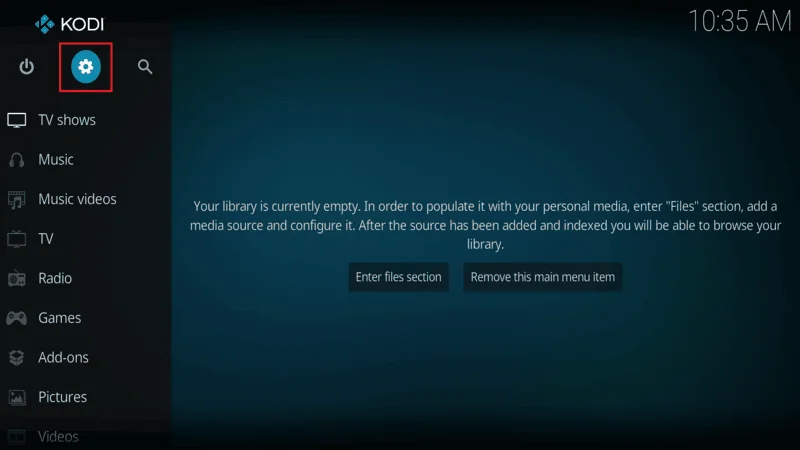
Step 1: On Kodi’s home screen, click the Settings icon (the gear or cog icon) in the top-right corner.
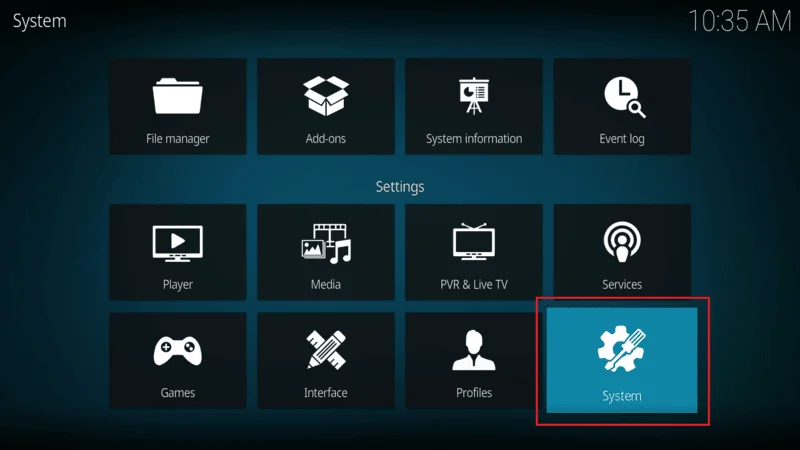
Step 2: Select System from the options.
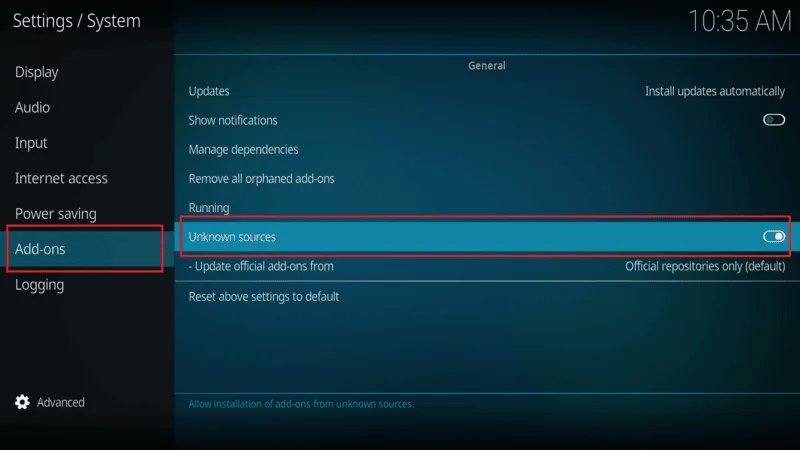
Step 3: On the left menu, click Add-ons, then toggle the switch for Unknown Sources to the right to turn it on.
That’s it! Now you’re ready to install the add-ons you need. Just don’t forget to disable Unknown Sources once you’ve finished installing everything you want.
Which Platforms Do These Methods Work On?
Kodi uses a consistent interface across all platforms, so these methods work no matter what device you’re using. Whether you’re on Windows, Android, iOS, or Amazon FireStick, the steps to fix buffering issues will be the same.
How to Fix Kodi Buffering: Optimize Cache Size
Buffering can ruin your Kodi experience, but tweaking the cache settings can make a big difference. The cache acts as temporary storage to help with smooth video playback. It stores portions of a video so it can continue playing even if your internet connection drops for a moment.
To reduce Kodi buffering:
- Allocate more cache memory for Kodi in your device’s RAM.
- Clear old cached data from previously streamed videos to free up space.
Below, we’ll explore how to adjust Kodi’s buffer settings and clear the cache effectively. These methods work on most devices, including Amazon FireStick, with only one exception.
Method 1: Stop Kodi Buffering Using Ares Wizard
Ares Wizard is a powerful tool for maintaining and optimizing Kodi. Let’s see how you can fix buffering by adjusting the cache settings: How to Install Ares Wizard On Kodi
Step 1: Open Ares Wizard and click the Tweaks button at the top.
Step 2: Select the Advanced Settings Wizard option. Before proceeding, review the provided caution note.
Cache size depends on your device’s specs, especially available RAM.
Use RAM for caching whenever possible for better performance.
Kodi defaults to 60MB of RAM for caching, but you can increase this if you have extra memory.
Step 3: After understanding these basics, click Next. Ares Wizard will show the available RAM and recommend an optimal cache size (typically 1/3 of the available RAM, with a 10% safety margin).
For example:
- If you have 900MB of RAM, 1/3 is 300MB. Subtracting the 10% margin gives you an optimal cache size of 270MB.
- Don’t allocate too much memory, as it can impact your device’s performance.
Step 4: Click Generate Settings to proceed.
Step 5: Adjust the Video Cache Size by moving the slider. You’ll also see four buffer modes:
Mode 1: Buffers everything from the internet, including cloud and FTP streams.
Mode 2 (Recommended): Buffers most content, including local storage files.
Mode 3: Buffers only web-based streams.
Mode 4: Disables buffering entirely.
For the smoothest playback, ensure Mode 2 is selected.
Delete Temporary Files with Ares Wizard Maintenance
If Kodi keeps freezing or crashing, low storage could be the issue—especially on devices with limited space, like some Android devices. Here’s how to clear temporary files and free up storage:
Step 1: Open Ares Wizard and click the Maintenance button at the top.
Step 2: Click these options one by one:
- Delete Thumbnails
- Delete Packages
These files can take up a significant amount of storage. Clearing them will not affect your settings or add-ons but will free up valuable space.
Method 2: Fix Kodi Buffering Using Supreme Builds Wizard
The Supreme Builds Wizard is another great tool to help reduce buffering on Kodi. Follow these steps to adjust the advanced settings using this wizard:
Step 1: Open Supreme Builds Wizard from the home screen or navigate to Add-ons > Program Add-ons. If you don’t have it installed, follow a guide to install Supreme Builds Wizard first.
Step 2: Click on Supreme Builds Maintenance from the main menu.
Step 3: Select System Tweaks/Fixes on the next screen.
Step 4: Choose Advanced Settings to access the advanced configuration options.
Step 5: Click on Quick Configure AdvancedSettings.xml.
Tip: Do not change the recommended settings unless you are sure. Review them briefly, then click Write File to save.
Step 6: If you encounter an error about an existing AdvancedSettings.xml file, click Remove Settings to proceed. This step is only necessary if you’ve used other tools for similar tweaks before.
Method 3: Fix Kodi Buffering with Real Debrid
Sometimes, buffering happens because Kodi isn’t fully utilizing your internet speed. This is where Real Debrid can help.
What is Real Debrid?
Real Debrid is a premium multihoster service that gives you access to high-quality streaming links. It: Unlocks 1080p Full HD and higher-quality streams. Utilizes 80-90% of your internet speed, even with speeds up to 300 Mbps. Works with many popular Kodi add-ons, like Exodus Redux, Seren, Gaia, and Yoda.
Important Things to Know About Real Debrid:
- Not an Add-On: Real Debrid integrates with compatible Kodi add-ons to provide better streams.
- Free Trial Available: You can try the service for free, but the free version has limited features. Streams are fewer, speed isn’t fully optimized, and access is restricted to certain hours.
- Premium is Best: The premium version removes these restrictions and dramatically reduces buffering issues. It costs about $5/month and offers discounted rates for longer plans.
How to Get Started with Real Debrid
To use Real Debrid, you need to:
1. Sign up for an account.
2. Integrate it with your Kodi add-ons.
For step-by-step instructions, check out our guide: How to Install and Use Real Debrid on Kodi.
How to Fix Kodi Buffering on Exodus Add-On
Exodus is one of the most popular Kodi add-ons, known for its massive content library and high-quality streams. If you’re experiencing buffering issues on Exodus, here’s how to fix it.
If you’re new to this add-on, you can install it by following this guide: How to Install Exodus Redux on Kodi.
General Buffering Fixes
The methods shared earlier to resolve Kodi buffering—like adjusting cache settings or using Real Debrid—apply to Exodus and any other add-on. However, there’s a specific method to fix buffering directly from within the Exodus add-on.
Fix Kodi Buffering on Add-Ons by Clearing Cache
Clearing the cache for Exodus is a simple but effective way to reduce buffering. Follow these steps:
Open Exodus: Navigate to Kodi Home Screen > Add-ons > Video Add-ons and select Exodus Redux.
Access Tools: Scroll down and click on Tools.
Clear Cache: Look for the Clear Cache option and select it.
Confirm Action: Click Yes to confirm and clear the cache for Exodus.
Note: This method works for most add-ons. If the option to clear the cache is not available within an add-on, use the Ares Wizard method mentioned earlier in this guide.
Possible Reasons for Slow Streaming or Buffering on Kodi
Buffering on Kodi can be frustrating, but understanding the root cause can help you find the solution. Let’s explore some common reasons why Kodi streams may slow down and what you can do to fix them.
Reason #1: Slow Internet Connection
Streaming videos in high quality, such as 720p HD or higher, requires a reliable internet connection. Here’s a breakdown of recommended speeds:
- SD Streaming: At least 5 Mbps.
- HD/Ultra HD Streaming: Preferably 20-30 Mbps.
If your internet speed is slower than these recommendations, buffering is inevitable.
How to Check Your Internet Speed
Use websites like Speedtest by Ookla or similar apps to test your connection. The download speed is crucial for streaming.
Tips to Boost Internet Speed
- Stay close to the router/modem if using Wi-Fi.
- Use a wired Ethernet connection for stable performance.
- Pause other apps or downloads using the internet while streaming on Kodi.
- Disconnect devices from the network that aren’t in use.
What if the issue persists despite having fast internet?
- Contact your ISP to ensure you’re receiving the speed you’re paying for.
- Consider using a VPN to bypass ISP throttling, which may slow down your connection during streaming.
Reason #2: Overcrowded Streaming Sources
Popular streaming sources often experience high traffic, which overloads their servers. This can lead to:
- Slower playback speeds
- Frequent buffering interruptions
Solution
Most Kodi add-ons offer multiple streaming links for the same content. If one source isn’t working well:
- Switch to another link.
- Look for sources with better reliability or consider using premium services like Real-Debrid for higher-quality streams.
FAQs: Addressing Kodi Buffering Issues
Kodi is a fantastic platform for streaming your favorite shows and movies, but buffering can sometimes disrupt the experience. To help you tackle this, we’ve answered some of the most common questions about fixing Kodi buffering issues. Let’s dive in!
1. Why does Kodi keep buffering even with a fast internet connection?
Kodi buffering may occur despite having a high-speed internet connection due to several reasons, such as:
- Overloaded streaming sources.
- Incorrect cache settings.
- Device performance limitations.
- Background apps using too much bandwidth.
Try optimizing Kodi’s cache settings or using a premium service like Real-Debrid for better streaming links.
2. How can I increase streaming speed on Kodi?
Here are some tips to improve your Kodi streaming speed:
- Use a VPN: Prevent ISP throttling and access faster servers.
- Optimize Cache: Allocate enough memory for video caching.
- Switch to Wired Connection: Use Ethernet instead of Wi-Fi for stable speeds.
- Reduce Connected Devices: Limit the number of devices sharing the network.
3. What is Real-Debrid, and how does it help with Kodi buffering?
Real-Debrid is a premium service that provides high-quality, fast streaming links for Kodi. It reduces buffering by utilizing more reliable and less crowded servers, making it an excellent choice for smoother playback.
4. How do I clear the cache on Kodi to fix buffering?
To clear the cache:
- Open the specific add-on (e.g., Exodus Redux).
- Go to Tools > Clear Cache.
- Confirm your action.
Alternatively, you can use maintenance tools like Ares Wizard or Supreme Builds Wizard to clear the cache for the entire Kodi application.
5. Should I reset Kodi if nothing else works?
Yes, resetting Kodi is a great option when other methods fail. A reset will remove all add-ons, builds, and settings, providing a clean slate. You can then reinstall only the necessary add-ons for a smoother experience.
Final Words
Buffering issues on Kodi can be frustrating, but the good news is that they’re often fixable with the right approach. By following the methods outlined, you can significantly reduce or eliminate buffering problems and enjoy seamless streaming.
Key Takeaways to Fix Kodi Buffering
- Use a VPN: A VPN not only protects your privacy but also helps avoid ISP throttling, leading to faster streaming speeds.
- Optimize Cache Settings: Allocating sufficient cache memory and regularly clearing it improves streaming performance.
- Switch Streaming Sources: If one link buffers excessively, try another link or use premium services like Real-Debrid.
- Reset Kodi if Necessary: When all else fails, resetting Kodi provides a fresh start to resolve persistent issues.